

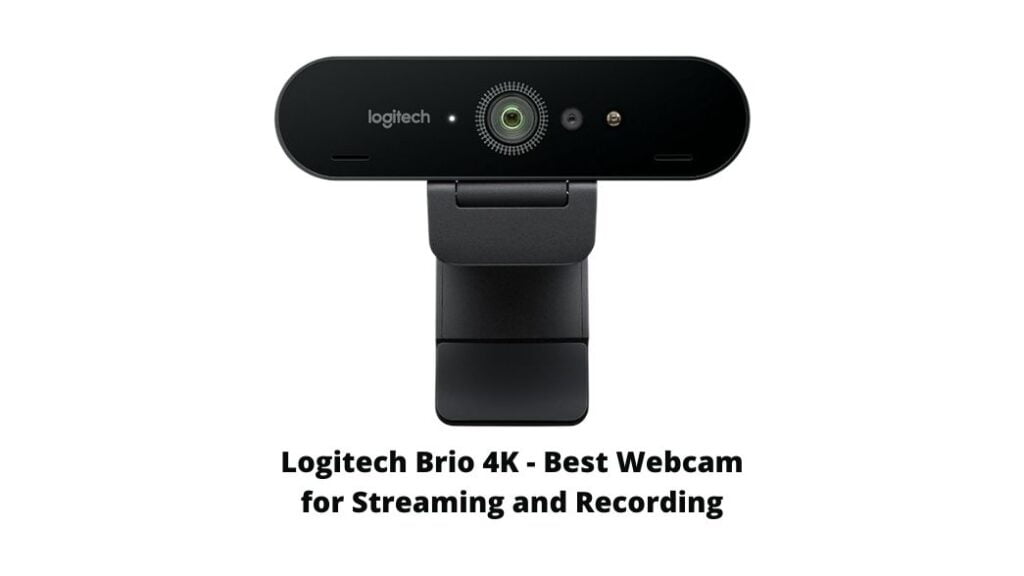
Logitech Brio 4K.
Have you ever dreamed of becoming a big YouTuber or streamer with an audience of thousands of people?
The right webcam like the Logitech Brio 4K can make you look very professional. They are the most essential tools for YouTubers, streamers, and video calling.
More than ever people are staying at home. Maybe you ambition a streaming or YouTube career, or you need a good webcam for working from home. Also, when you can keep in contact with your friends whilst video calling and look them in the eyes, is a way better experience.
What makes a webcam a good, professional webcam?
After using different webcams for years, I noticed that there are a few key techniques you should pay attention to when buying a new webcam.
This has everything to do with a few things, starting with the framerate (fps).
This is the speed at how many images (frames) it captures per second. The higher the fps, the more realistic and lifelike video images you will get. Lower framerates create a choppy effect on your video image.
The resolution determines the quality of the video image.
A crisp video image needs a high resolution, making the difference between looking professional or not. Higher resolutions have more pixels per inch (PPI), showing more detail on your video.
Autofocus is important to stay sharp and clear on video, also when you’re moving around or showing objects closer to the camera.
The field of view (FOV) shows how much will be on the video. The higher the FOV, the more it will capture of yourself and the area around you. A high FOV gives a deep, professional look to the video image.
The Logitech Brio 4K
The Logitech Brio 4K runs on a constant 60fps framerate in FullHD – or 30fps on a 4K resolution. Therefore, your video image will look super smooth and realistic. It feels like there is no delay.
Keeping up with the speed of your game is no problem for the Brio. Your viewers won’t miss any of your facial expressions.
You can also adjust the Brio to a 90-degree FOV. Most webcams go to a maximum of 78 degrees. This will add depth to your room, making it look wider and bigger.
Logitech Brio 4K Software: Logitech Capture
You want to get the best result out of your webcam. After plugging it in, Logitech Capture will help to customize the settings as you like.
The Logitech Brio 4K has all-round the highest quality and best features, to give you all you need from a webcam.
If you purchase through my website, you will make me able to create more videos and reviews like this. It will help me out a lot!
Full Review
Did you know that the first webcam was made to keep an eye on the coffee levels of a coffee pot?
In 1991, Dr. Quentin Stafford-Fraser and Paul Jardetzky invented the world’s first webcam, helping late-night studiers and programmers to prevent them from a trip to an empty coffee pot.

Webcams nowadays contain really good techniques, even though they can be really small and compact. Thanks to streaming and making videos for years, I can confirm that the right webcam does a really good job!
The wrong webcam can make your video image not in sync with your microphone, creating a choppy effect. It also causes a delay, making that your webcam can’t speed up with the speed of the game.
This can be because of a low frame rate.
Whether you are looking for a new webcam or an upgrade for gaming or working: this review will go with you through all the aspects of the Logitech Brio 4K, making you understand why this can be a great webcam for you.
The importance of Frame Rates
High frame rates are necessary to create professional, realistic-looking video images. Incredibly, the technique of webcams has improved so well to offer great specs.
Webcam framerates are measured in frames per second (fps). The Logitech Brio offers 60fps, meaning that it can take 60 pictures every second. This is so smooth that it creates a lifelike effect.
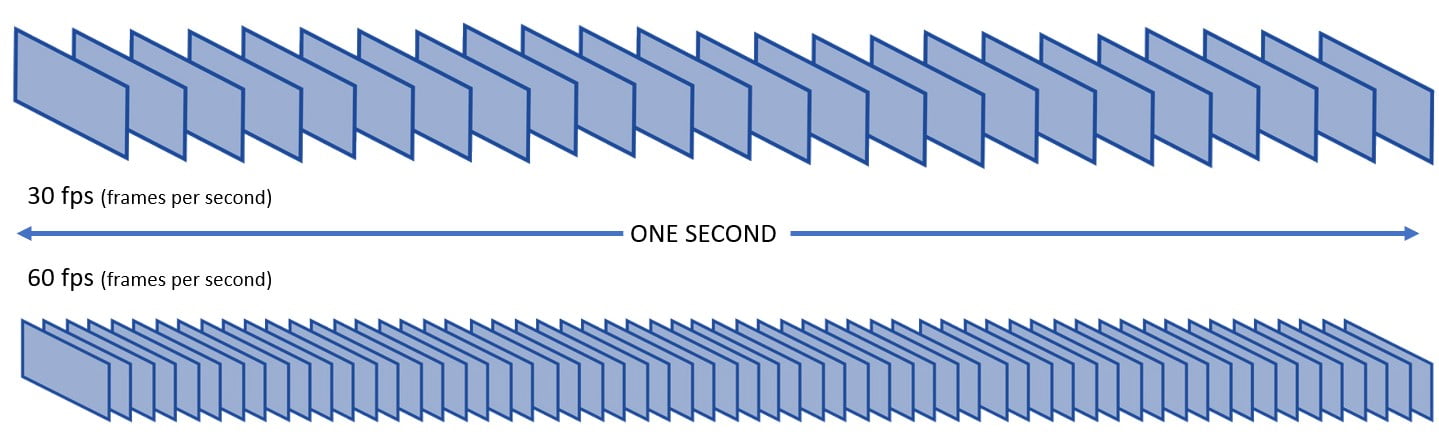
The resolution of the webcam can also have an impact on the fps. For example, some webcams can run on 60fps only if they have a resolution of 720p, not at full 1080p.
Logitech Brio 4K: Frame Rates
The Logitech Brio webcam can run smoothly on a constant 60fps with Full HD. There is no way that you’ll notice a choppy effect anymore.
Your face expressions and gestures in streams or video calls will be super smooth – plus your voice will be in sync with your webcam. You don’t want to come across as if you’re implicating an audio file and your lips are randomly moving.
For the people who want a really high, crystal clear image – they can run the Logitech Brio on a 4K resolution that runs on 30fps.
There is no way you will miss out on any detail with this 4K option!
The Field of View
A great feature that most webcams don’t have, is a 90-degree field of view. This offers you the experience of ‘’like being in the same room’’.
You can show more of your gaming room or working office. This is also a huge benefit if you’d like to have more people on camera.
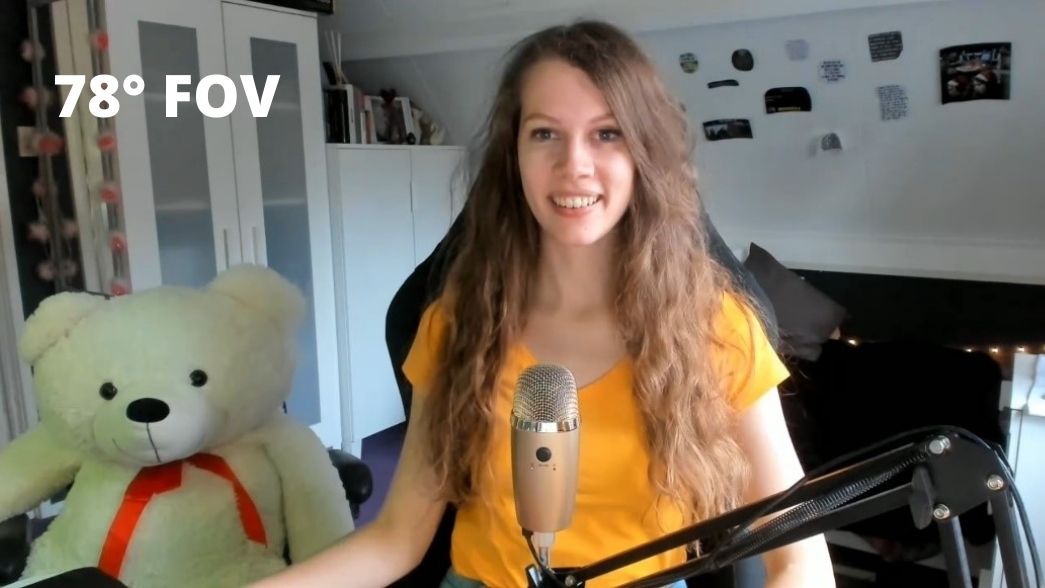
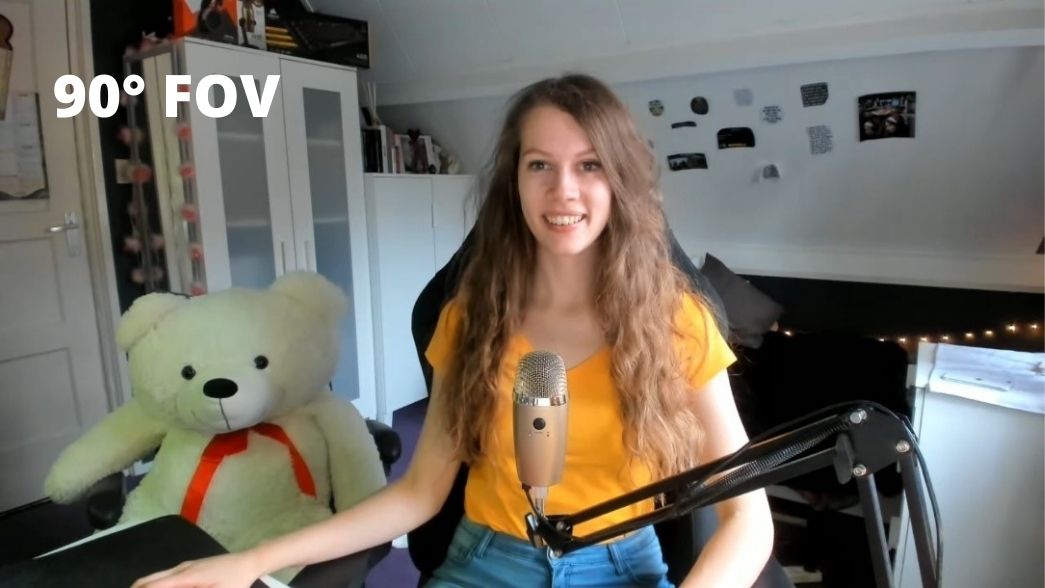
Most webcams have a 65- or 78-degree field of view (FOV). The picture below will show you the differences between these FOVs.
To give you an impression of how these look like I’ve added these screenshots:
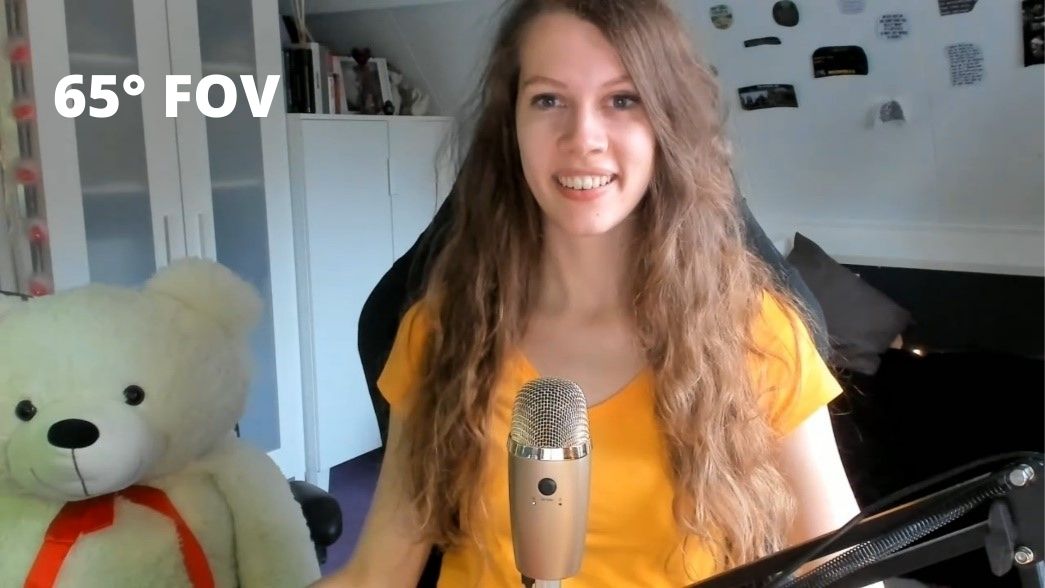
Logitech Brio 4K: Field Of View
The Logitech Brio has the option to use a 65-, 78- and 90-degree field of view. The higher the FOV, the better and more professional it looks!
Do you see the 90-degree field of view makes your room look wider and adds more depth?
With the Brio, you will want to make use of the 90-degree FOV. That’s also where we mainly got the Brio for, right?
When you have a messy room or people walking behind you that you don’t want to show, you can always switch between these FOV’s, or use the zoom function.
This way you don’t have to worry whenever your mother is around in her bathrobe or that people will spot your socks on your floor!
Logitech Capture Software: Setting up your Logitech Brio 4K
Plugged in your Logitech Brio webcam.. your computer automatically detects it, but the quality doesn’t seem that good or can use improvement. What now?
The first step is to download the software that will be the easiest and best to use for this webcam, called ‘Logitech Capture’.
After you’ve downloaded the software -make sure you don’t have any other camera apps open. Then you can start tweaking your webcam to make it look as best as possible.
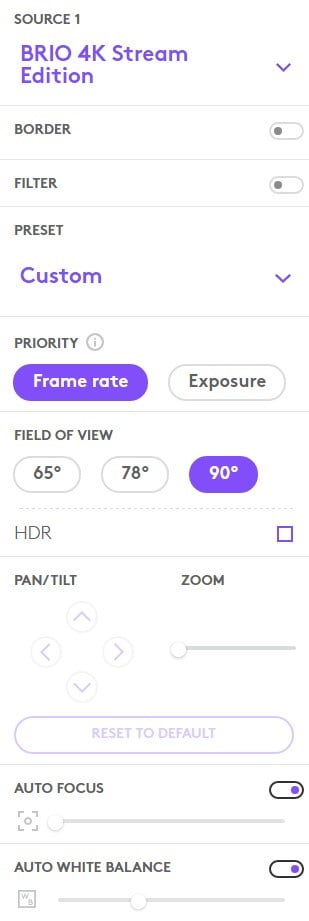
On the right, you will see all the options that you can adjust.
The relevant options to get the best out of your Brio webcam are these:
- Priority: frame rate
We want to make sure to keep that constant 60fps on FullHD – or 30fps on 4K.
- Field of view: 90 degrees
This is where the magic happens! Use the outstanding feature of the Brio. A 90-degree FOV effect makes you look way more professional.
- Autofocus: On
Your video image will stay clear. The webcam makes sure the video image stays sharp, no matter how far away you get from the webcam. If you want to show an object, the webcam will automatically focus on your object and refocus on your face.
When you move a little bit in your chair or when you’re using a standing desk like me, the webcam will lose its focus too when autofocus is turned off.
- Auto white balance: On
This gives you a more natural, warmer video image in several lighting circumstances. If you turn this off, you can get an icy blue image effect.
- Anti-flicker: 60Hz
This will help you to reduce flickering when recording under artificial lightning, such as light from an LED screen or fluorescent lights.

Avoid these options
I recommend avoiding the zoom function and HDR. If you want to zoom in, try to use another FOV instead. If this doesn’t fit, then adjust the zoom.
The HDR option makes your webcam a little bit slower and it did give no visible benefit for me, with the relevant settings turned on (mentioned above).
Recommended, alternative, and budget webcam: which one should I go for?
To get the right webcam for you, there will be shown an alternative and budget webcam as well with the most important differences.
Recommended: Logitech Brio 4K
- 4K on 30fps
- 1080p on 60fps
- Max. field of view: 90°
The Logitech Brio 4K is the best option technically, it has all-round the highest quality and best features.
Alternative: Logitech StreamCam
- 1080p on 60fps
- Max. field of view: 78°
The Logitech StreamCam is a little bit cheaper but compromises on quality.
Budget-friendly: Logitech C922
- 720p on 60fps
- Max. field of view: 78°
The Logitech C922 is a more budget-friendly webcam.
I’d recommend either going for the Logitech Brio 4K or the Logitech C922, as I’ve tested them both. The Logitech Brio wins from the Stream Cam because it gives you more options for a slightly higher price. If you like to stay more on budget, the C922 is a great pick!


